

The DIATwin Model Library feature allows users to centrally view and manage models, and continuously adds pre-built models for users to quickly create simulation-ready models. Below is an introduction to the user interface.
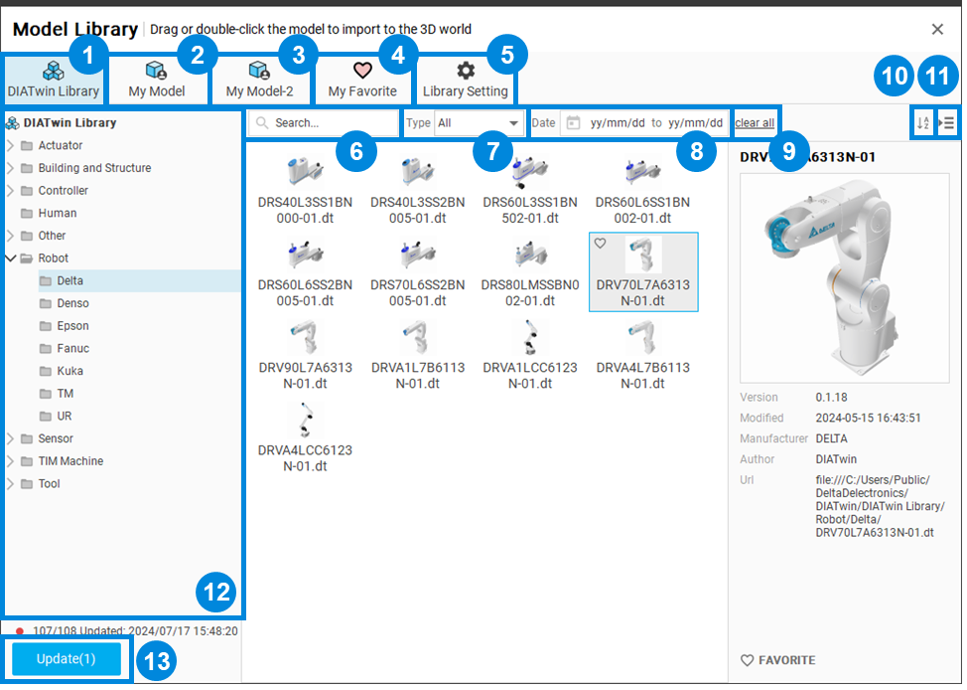
| 1 | DIATwin Model Library | The DIATwin Model Library provides pre-built models and sample files for users to reference. |
| 2 | My Model Library | The default location for storing models. Users can create folders in File Explorer for management. |
| 3 | My Model Library 2 | If users have a shared team model library, they can set the path to the shared folder to access models. |
| 4 | Favorites | Frequently used models can be added to Favorites to reduce the time spent searching for models. |
| 5 | Model Library Settings | Allows users to modify the name and path of the model library. |
| 6 | Search Bar | Users can enter keywords such as file name, version, manufacturer, or author to search. |
| 7 | Type Filter | Filters files by type, such as component or layout files. |
| 8 | Date Filter | Allows users to filter by a date range by selecting start and end dates. |
| 9 | Clear All | Clears all filter criteria with one click. |
| 10 | Sort | Sorts files in ascending or descending order by file name. |
| 11 | Information Panel | Opens or closes the information panel, where users can view file version and other details. |
| 12 | Tree View | The tree view displays a folder structure based on File Explorer, with the top level showing all files regardless of folder. |
| 13 | Update Button | The DIATwin team periodically adds new models. When the local database differs from the cloud database, users will be prompted to update. |